Basic Usage
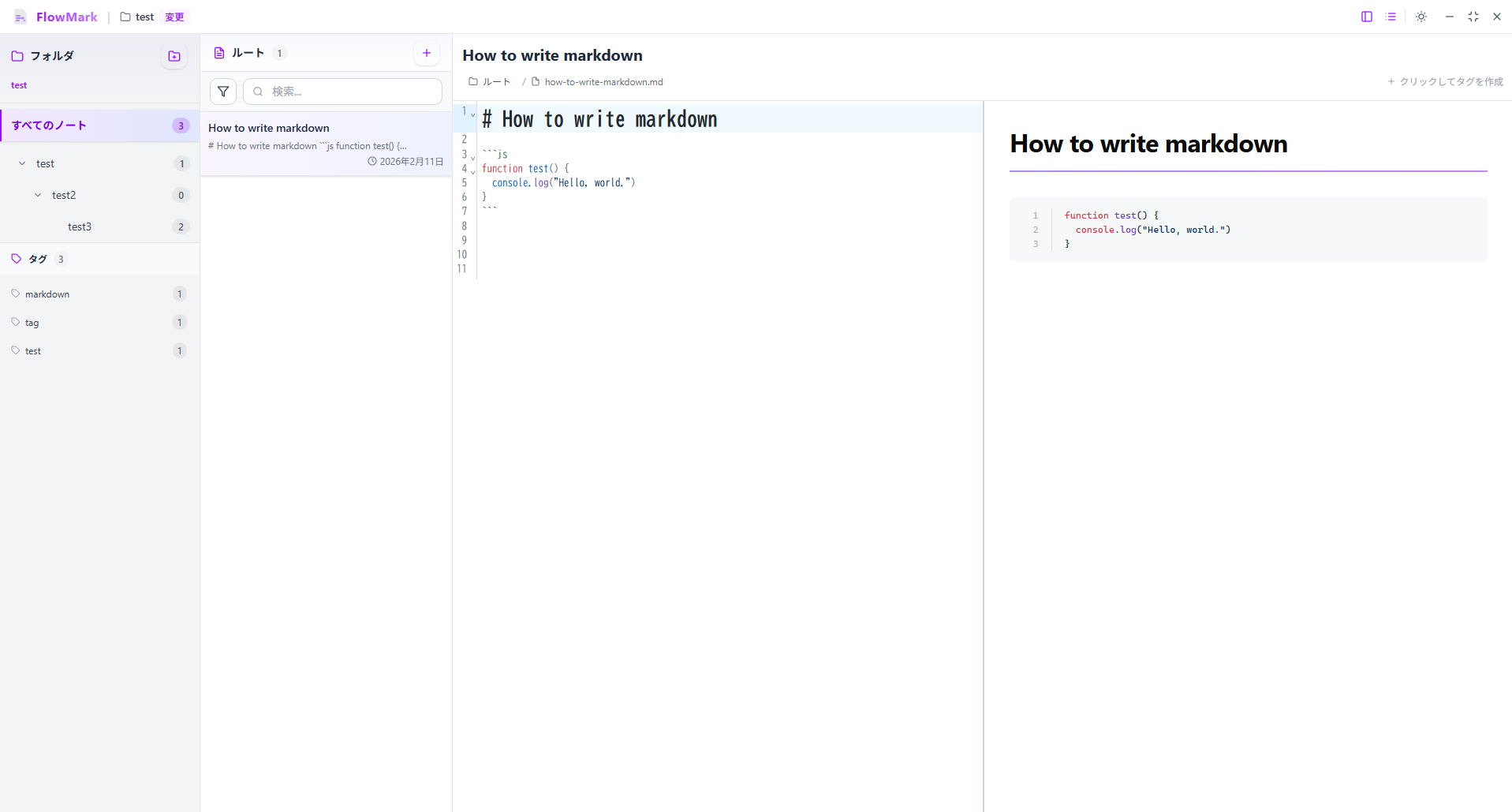
Notyra’s UI consists of three main sections.
- Sidebar: The sidebar on the left displays the folder tree and lets you manage notes hierarchically.
- Note List: Next to the sidebar, a list of Markdown notes in the selected folder is shown for easy access.
- Editor: On the right side of the screen, a Markdown editor is provided for editing the selected note, with real-time preview support.
Create a New Folder
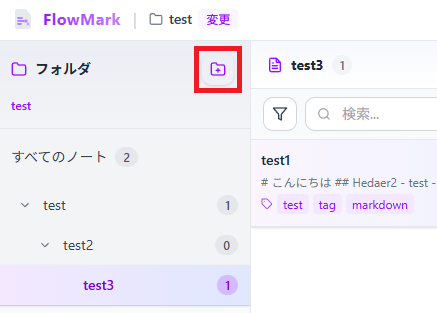
Section titled “Create a New Folder”Click the “New Folder” button at the top of the sidebar to create a new folder inside the currently selected folder. This helps you organize your notes in more detail.
Double-click a folder to navigate through the folder hierarchy like breadcrumbs.
Create a Note
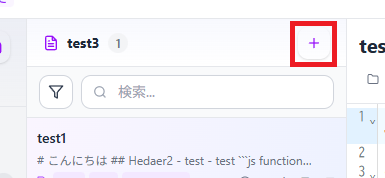
Section titled “Create a Note”Click the “New Note” button at the top of the note list to create a new Markdown note inside the currently selected folder. This allows you to start editing a new note right away.
If you create a note while viewing a specific folder, the note will be created in that folder.
Click a note to open it in the editor and start editing.
Delete a Folder
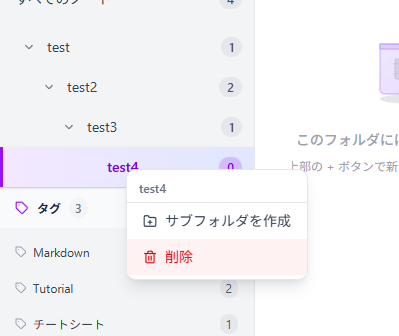
Section titled “Delete a Folder”Right-click the folder you want to delete in the sidebar, then select “Delete” from the context menu. This permanently deletes the folder and all notes inside it.
Warning
Deleting a folder will permanently delete all notes inside it as well. Make sure it does not contain any important notes before deleting. Also, the root folder cannot be deleted.
Delete a Note
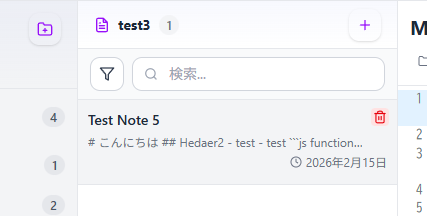
Section titled “Delete a Note”When you hover over the note you want to delete in the note list, a trash icon appears in the upper-right corner.
Click this icon to permanently delete the note.
Warning
Once a note is deleted, it is permanently removed and cannot be restored. Make sure it does not contain important content before deleting.
Change the Editor Mode
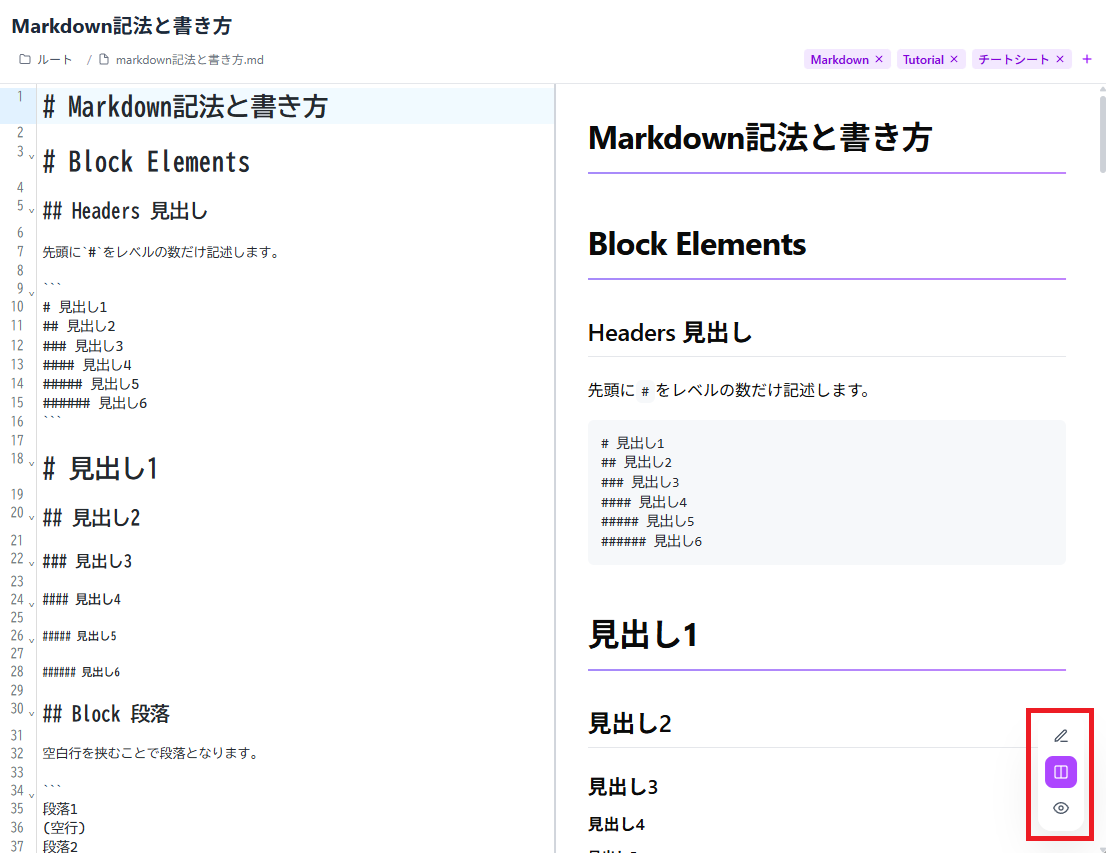
Section titled “Change the Editor Mode”The editor can be switched between three modes: editor only, preview only, and both editor and preview.
When your mouse is focused on the editor, click the mode toggle icon shown in the lower-right corner and choose your preferred display mode.
Move a Note to Another Folder
Section titled “Move a Note to Another Folder”You can move the note currently displayed in the editor to another folder.
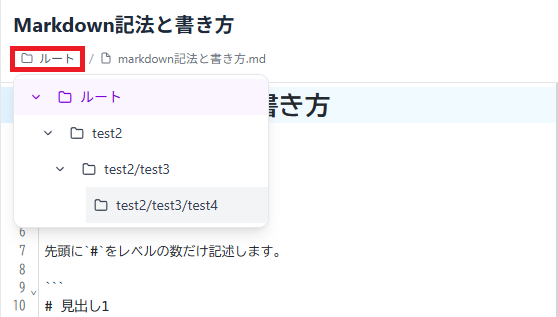
Click the folder name at the top to open the folder list, then select the destination folder.