 Notyra Docs
Usage of Custom Themes
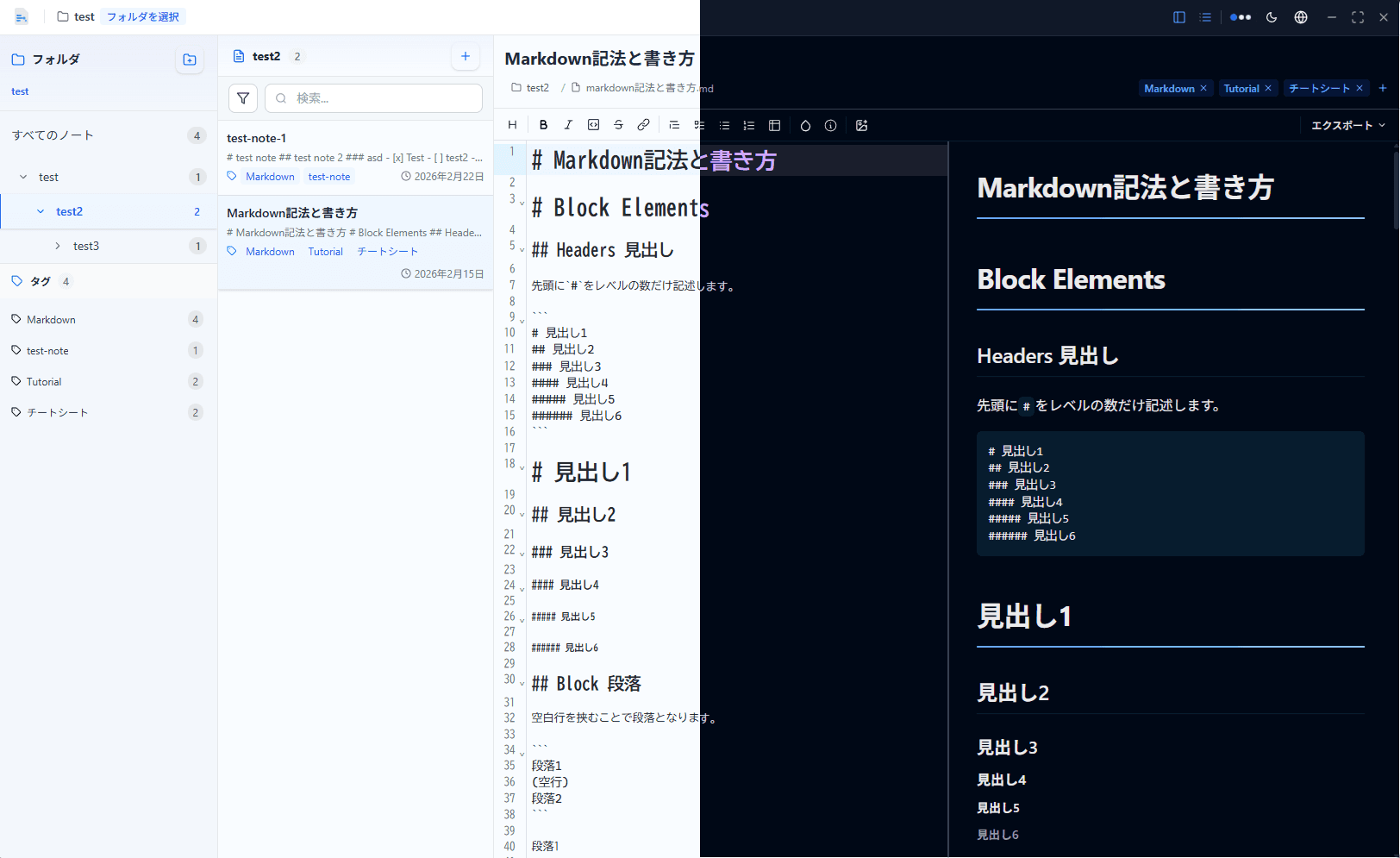
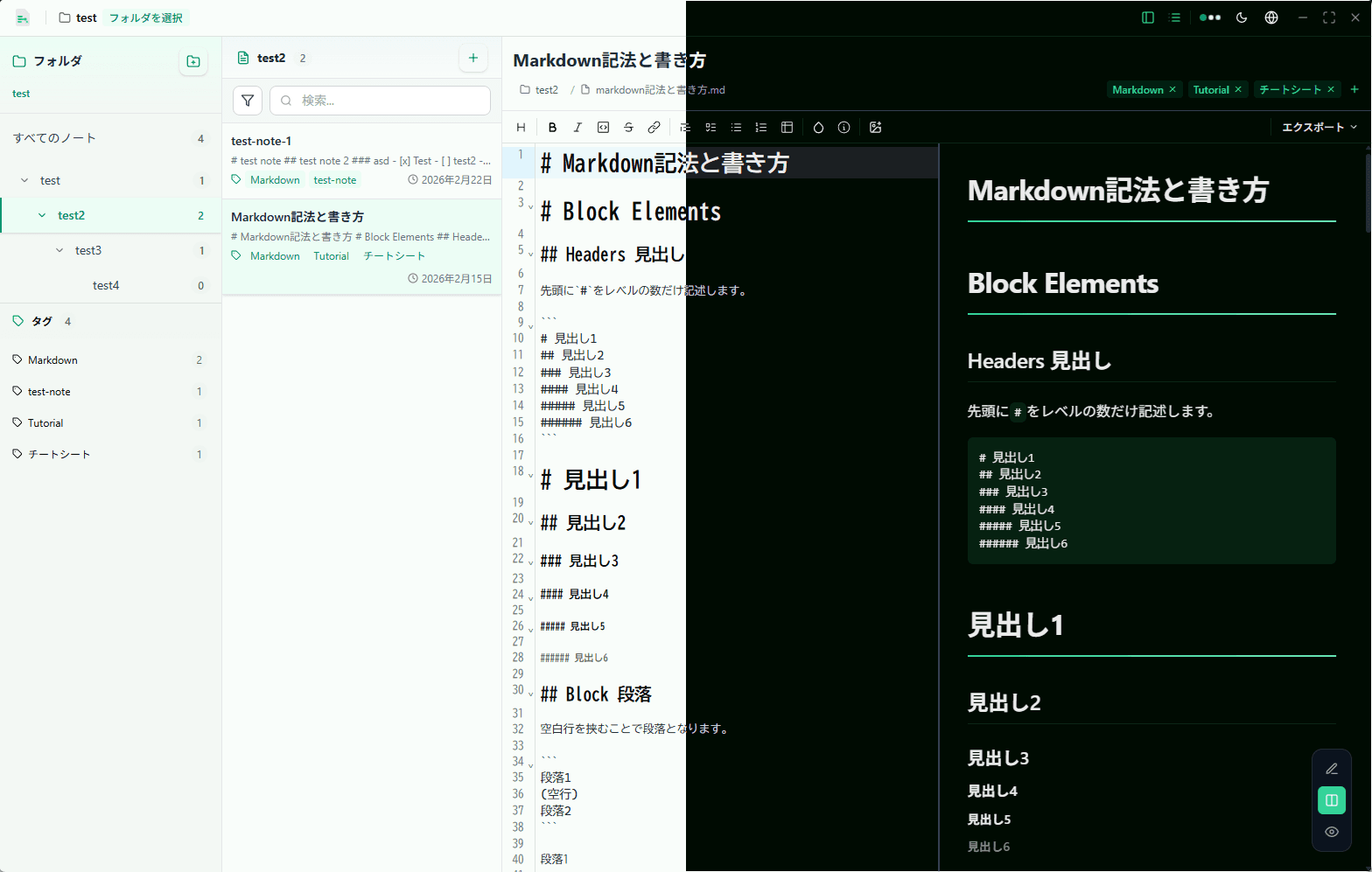
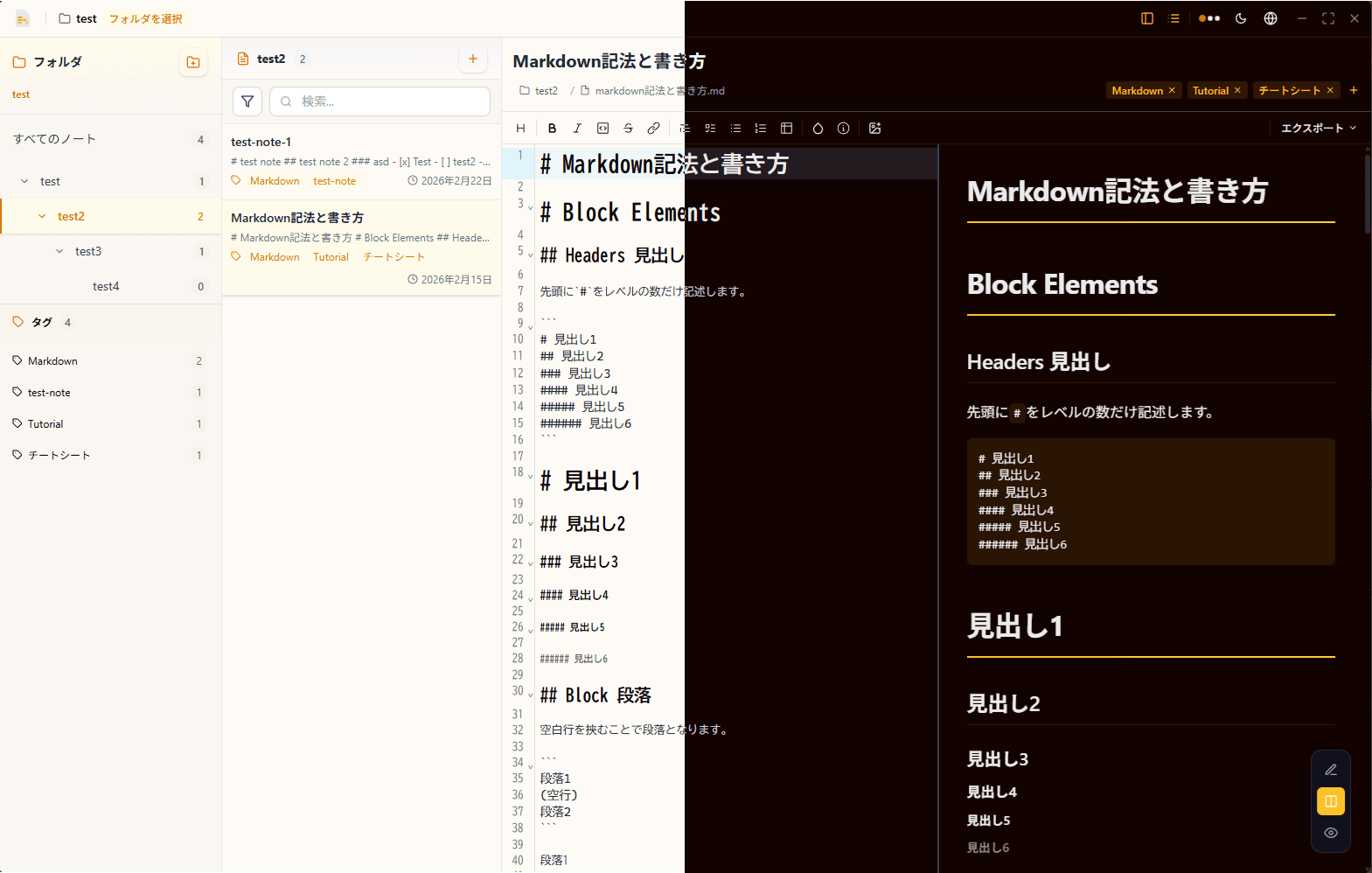
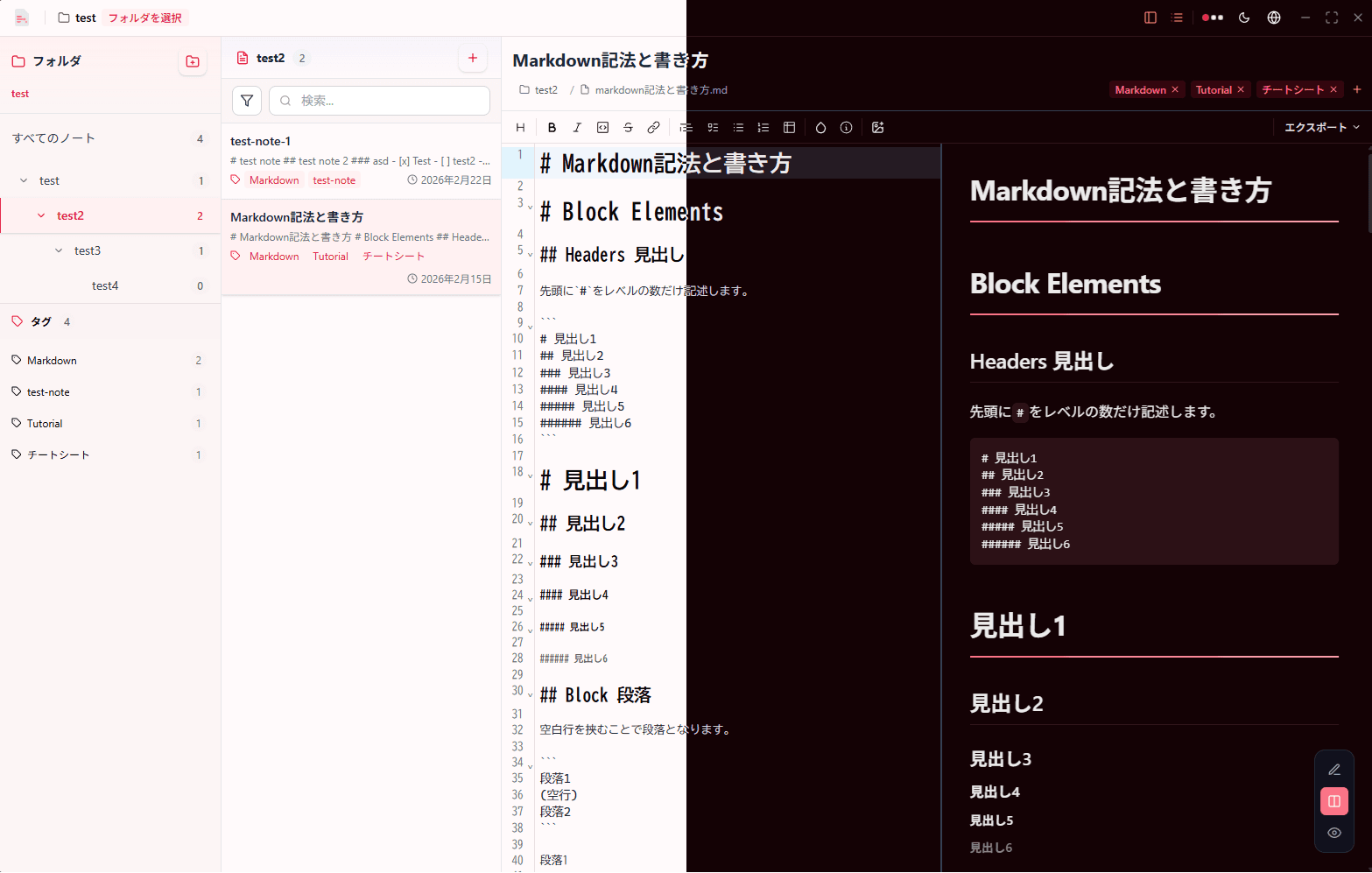
In addition to the default themes, Notyra also offers custom themes that users can utilize. Users can further customize the appearance of Notyra to their liking.
Available Custom Themes
How to Import Custom Themes
Themes are provided in JSON format and can be easily imported from Notyra's theme settings.
-
Click the above themes to open the JSON format in a new tab, then save it as a JSON file.
-
Click the "..." icon in the upper right corner of the Notyra window and select "Import Theme File" from the dropdown menu.
-
A file explorer will open, so select the downloaded theme file (json).
-
Once the import is complete, the new theme will be added to the theme list. You can select and apply the theme.
Change Theme
Notyra comes with two default themes, Dark Scale and Purple, allowing users to switch between them according to their preferences.
Create Custom Themes
Notyra supports customizing themes using JSON files. Users can create their own color themes and fully customize Notyra's appearance to their liking.