 Notyra Docs
How to Write Markdown
Notyra uses Markdown syntax for writing.
Headings
You can create headings by adding # at the beginning of a line.
The number of # symbols changes the heading size.
# Heading 1

## Heading 2

### Heading 3

#### Heading 4

##### Heading 5

###### Heading 6
Heading 1
Heading 2
Heading 3
Heading 4
Heading 5
Heading 6
Line Breaks
You can insert a line break by adding two half-width spaces before the break.
hoge
fuga(two spaces)
foo
hoge
fuga
foo
Blockquotes
You can create blockquotes by adding > at the beginning of a line.
> Quote
> Quote
>
> > Nested quote
Quote
QuoteNested quote
Code Blocks
You can display a code block by wrapping text with three backticks.
print("Hello, world!")You can also enable syntax highlighting by adding a language name after the opening backticks.
print("Hello, world!")Lists
Bullet Lists
You can create bullet lists by starting lines with a hyphen -, plus +, or asterisk *.
- List 1
  - List 1_1
    - List 1_1_1
    - List 1_1_2
  - List 1_2
- List 2
- List 3- List 1
- List 1_1
- List 1_1_1
- List 1_1_2
- List 1_2
- List 1_1
- List 2
- List 3
Numbered Lists
You can create numbered lists by starting lines with number..
1. Numbered List 1
   1. Numbered List 1-1
   1. Numbered List 1-2
1. Numbered List 2
1. Numbered List 3- Numbered List 1
- Numbered List 1-1
- Numbered List 1-2
- Numbered List 2
- Numbered List 3
Tables
You can create tables using - and |.
| TH1 | TH2 |
| --- | --- |
| TD1 | TD3 |
| TD2 | TD4 || TH1 | TH2 |
|---|---|
| TD1 | TD3 |
| TD2 | TD4 |
| Left Align | Center Align | Right Align |
| :--------- | :----------: | ----------: |
| 1          |      2       |           3 |
| 4 | 5 | 6 || Left Align | Center Align | Right Align |
|---|---|---|
| 1 | 2 | 3 |
| 4 | 5 | 6 |
GitHub Alerts
You can use GitHub Alerts by starting with > and writing [!XXX].
> [!NOTE] This is a NOTE
> NOTE

> [!TIP]
> TIPS

> [!IMPORTANT]
> IMPORTANT

> [!WARNING]
> WARNING

> [!CAUTION]
> CAUTION
[!NOTE] This is a NOTE NOTE
[!TIP] TIPS
[!IMPORTANT] IMPORTANT
[!WARNING] WARNING
[!CAUTION] CAUTION
Useful Feature
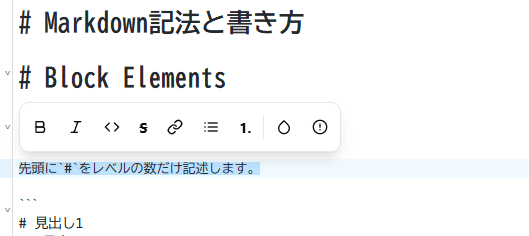
When you drag to select text, a toolbar appears at the top.
You can add text effects with one click by selecting the desired style from the toolbar.